
OneTrust Hands-On Lab
⚠️ IMPORTANT NOTICE ABOUT LAB LOGINS ⚠️
Hands-On Labs are ONLY accessible by customers and partners with valid myOneTrust log-in credentials who are engaging in Self-Paced or Instructor-Led certification content in OneTrust University.
myOneTrust LoginsOneTrust customers, prospects, and partners should ensure their myOneTrust credentials allow access to myOneTrust Groups.
- If needed, you can Reset Your Password.
- If you do not have a MyOneTrust login, you can Self-Register for a MyOneTrust Account.
- If you can log-in, but cannot access groups, contact OneTrust support or your account executive.
NOTE: For the quickest self-registration experience, register with an email address that matches the URL of your company or an email address that is an existing OneTrust tenant user.
About the OneTrust Hands-On Lab
The OneTrust Hands-On Labs (HOL) allows OneTrust customers and partners to get a hands-on, guided experience in a completely isolated environment.
Access to the OneTrust Hands-On Lab requires valid myOneTrust log-in credentials.
Self-Registering for a myOneTrust Account
New users wishing to use the OneTrust HOL must register and use a myOneTrust account for access.
- In your web browser, browse to Self-Register for a MyOneTrust Account
- Enter your First Name, Last Name, Email Address, and Company Name. Click Sign Up.
- The myOneTrust system will set up your account and send you an email.
NOTE: For the quickest self-registration experience, register with an email address that matches the URL of your company or an email address that is an existing OneTrust tenant user.
Problem Self-Registering?If you do not receive the automated email from myOneTrust confirming your account, contact OneTrust support or your OneTrust account executive.
Taking a OneTrust Hands-On Lab
📹 Watch this instructional video for how to take OneTrust Hands-on Labs!
Additional Topics
Single Sign-on to myOneTrust through OneTrust
Your organization may be configured to require single sign-on to myOneTrust by first logging in to your OneTrust environment. If your organization has this requirement, follow the below steps to login for Hands-on Labs access:
1. Login to your OneTrust Environment
Login to your OneTrust environment.
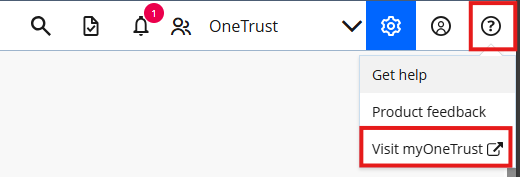
In the top-right corner, click on the Help button, then click on Visit myOneTrust.
2. Confirm Single Sign-on to myOneTrust
Confirm that your name is displayed in the top-right corner, indicating that you were successfully signed in to myOneTrust.

3. Access Hands-on Labs
Complete the login process shown in under Taking a OneTrust Hands-on Lab. You will not need to re-enter to myOneTrust credentials or single-sign on again.
When your myOneTrust login session expires and you wish to take another lab, be sure to login to myOneTrust through your OneTrust environment again.
Updated about 2 months ago